


CAD Drawing (CAD Program)
4.06.00 Reviews
App Specs
- Version
- 3.8
- Updated On
- License
- Free
- Downloads
- 10,000+
- Developer
- Sebastian Kemper
- Categories
- Libraries & Demo
- Platform
- Android
Screenshots
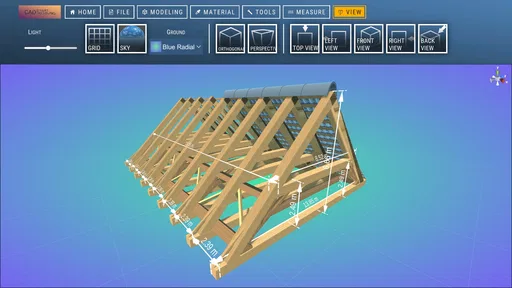

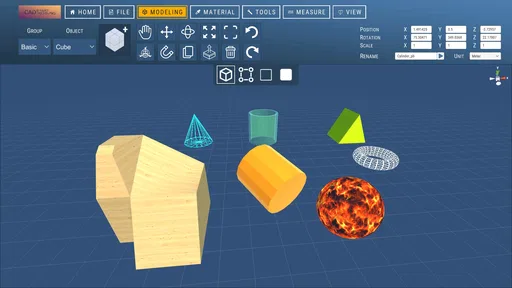
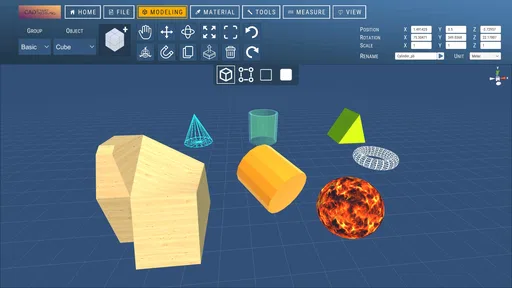

 Analysis by AppCompare
When I look for a mobile design tool, I want to know whether it can help me think through a shape or layout without pretending a phone is a full workstation. CAD Drawing makes most sense as a hands-on place to explore ideas in three dimensions: useful for early sketches and practical planning, but not something I would choose for precision-critical professional work without first checking that its workflow fits my needs.
A compact workspace for thinking in 3D
CAD Drawing is a free design app from Sebastian Kemper, listed in the Libraries & Demo area. Its appeal is straightforward: it brings drawing and 3D modeling into a format that can be convenient when I have an idea away from a desk. The app has a 4.0 average from 44 ratings, and its audience has passed 10K installs. Those figures suggest a modest, established user base rather than a specialist tool with a huge professional footprint.
The first useful question is not whether a mobile CAD app can replace desktop software, but what I want to accomplish before I sit down at a computer. If I am exploring the proportions of a small object, arranging a basic room concept, or trying to communicate a shape to someone, working directly on a phone can remove the delay between imagining and sketching. That immediate access is the strongest reason to consider this kind of app.
Where the workflow can help
A practical way to use a mobile modeling tool is to start with the decision that matters most. For a room plan, that might be the relationship between a doorway and a large piece of furniture; for a product idea, it could be the overall silhouette. I would make a deliberately rough first pass, inspect the form, and only then spend time refining details. That keeps a small screen from turning an early idea into a fussy modeling exercise.
There is a useful trade-off here: a quick visual model can expose proportion problems that are easy to miss in a flat sketch, but a convincing-looking view is not automatically a measured construction drawing. I would treat what I make as a planning aid unless I had checked the app’s precision and output requirements for the job. Anyone building, machining, or ordering materials should verify dimensions independently before relying on a mobile design.
For a realistic everyday example, imagine I am considering a new desk arrangement in a spare room. I can use a rough model to compare where the desk, chair, and storage might sit, then walk through the room with those decisions in mind. The value is not that the app knows the room’s measurements; I still have to measure and enter or account for them. The value is that a spatial sketch can make a layout easier to discuss and revise than a vague description.
How it fits beside other design tools
Compared with drawing on paper, a 3D-oriented app can make it easier to inspect a concept from different viewpoints and communicate its shape. Compared with a full desktop CAD package, a phone-based workflow is naturally better suited to quick exploration than long, exacting sessions with many interdependent details. I would choose the simplest tool that matches the decision: paper for a fast rough outline, a mobile model for spatial exploration, and desktop software when I need a more controlled technical process.
Worth Reading Before You Choose

Flipboard Shows What News Apps Must Do Beyond the Feed

Switching to Android Auto Means Rethinking Your Driving Routine

Google Calendar Makes a Crowded Week Easier to Manage

Ludo King Makes the Most of the Minutes Between Plans

Baby Panda World Brings Quick Play to Modern Phones, but Its Game Library Feels Busy

ESPN’s Live Game View Makes Following Close Games Easier
That distinction matters for beginners, too. A visual model can be encouraging because it makes an idea feel tangible, but it can also give a false sense of completion. I would keep notes about real-world measurements alongside the model and label assumptions clearly. For example, if I have estimated the clearance around a chair rather than measured it, I would not treat that layout as settled.
Who should give it a try
I would point hobbyists, students, and curious beginners toward CAD Drawing if they want to experiment with digital design and are comfortable learning by trying things. It may also suit someone who wants a visual aid for a conversation about an object or a room, provided they are not presenting a sketch as a certified plan. The Everyone age classification makes it broadly accessible, though younger users may still benefit from an adult helping them distinguish a concept model from a build-ready design.
On the other hand, I would steer a professional toward a more established desktop workflow if a project depends on dependable technical documentation, strict tolerances, or a specific exchange format. I would also skip a mobile CAD app if I know I need a keyboard-and-mouse setup, a large drawing area, or specialized tools. Before committing a serious project, I would test the exact task that matters to me rather than assuming that the word “CAD” guarantees every conventional CAD capability.
There is also a sensible way to evaluate it without overinvesting: try a small, disposable project first. Make a simple form or layout, check how comfortable it feels to edit, and see whether the result is useful for the next step in your process. If the task becomes awkward as soon as you need more control, that is a sign to move the work to another tool, not necessarily a reason to abandon mobile modeling altogether.
Ever found yourself daydreaming about designing your own house or creating that perfect piece of furniture? Well, I recently stumbled upon an app that's got me hooked—let me tell you all about CAD Drawing. If you're into creating and designing, this app might just be your new best friend.
Getting Started with CAD Drawing
So, what’s the first thing you notice when you open CAD Drawing? For me, it was the sleek and user-friendly interface. I’m no professional architect by any means, but the app makes you feel like one. You don’t have to spend hours getting accustomed to the tools—everything is pretty intuitive.
Upon launching, you’re greeted with a variety of templates. Whether you’re planning a floor layout or sketching a 3D model, there’s something for everyone. And hey, if you’re feeling adventurous, you can always start from scratch!
Features That Stand Out
Let’s dive into the nitty-gritty. One of the coolest things about this app is the real-time collaboration feature. You can invite friends or colleagues to join your project and make edits in real time. This is a game-changer for teamwork, especially for those who are working remotely.
The app also offers a vast library of objects. Want to add a couch to your living room design? Just drag and drop. The detail level is impressive, and you can customize sizes to fit your needs.
And the cherry on top? The 3D visualization. With just a tap, your 2D sketches transform into 3D models. It’s like magic! This feature lets you see your designs from every angle, providing a more comprehensive view of your project.
Learning Curve and Support
If you’re worried about a steep learning curve, fear not. The app provides an extensive set of tutorials and tips. I found the step-by-step guides particularly helpful when I was experimenting with more advanced tools.
Plus, the community support is fantastic. There’s an active online forum where users share their creations, ask questions, and provide solutions. It’s like having a whole community of designers right at your fingertips.
Performance and Compatibility
Now, let’s talk performance. Whether you’re using an Android or iOS device, CAD Drawing runs smoothly without any noticeable lags. This is crucial when working on detailed projects. The app syncs seamlessly across devices, so you can start a project on your phone and finish it on your tablet.
Compatibility is another big win. The app supports multiple file formats, making it easier to export your designs to other platforms or share them with others. Whether you’re importing a design from another program or exporting your masterpiece, it’s all hassle-free.
Final Thoughts
So, is CAD Drawing worth the download? In my opinion, absolutely. It’s packed with features that cater to both beginners and experienced designers. The ease of use, combined with the powerful tools, makes it a must-have for anyone interested in design.
Whether you’re sketching out a simple room design or crafting a complex 3D model, this app has got you covered. Plus, the constant updates and community support ensure you’re always getting the best experience possible.
In short, if you’re on the lookout for a reliable and intuitive CAD app, give CAD Drawing a try. I promise you won’t be disappointed!
A sensible way to judge the cost and commitment
The app is free to install, with in-app purchase items priced from $4.99 to $99.99. I would treat those purchases as a reason to test my actual workflow before paying for anything: first see whether I can create and revise a small project comfortably, then decide whether an optional purchase solves a real problem for me. A wide price range can cover different items, so I would check what a particular purchase unlocks rather than assuming that every useful tool requires payment—or that every purchase is necessary.
Version 3.8 supports devices running Android 8.0 or later. That makes the minimum requirement worth checking before downloading, especially if I am planning to use an older phone or tablet. For a design task, screen space and comfortable touch interaction can matter as much as operating-system compatibility; if editing feels cramped on my phone, a larger supported device may be a more pleasant place to work.
Questions I would settle before a serious project
Can I rely on it for exact dimensions? I would not assume so just because it is a CAD app. I would test how dimensions are entered and inspected, then compare a trial drawing against measurements I know to be correct. Is it a good place to prepare a final technical file? That depends on the specific output and the requirements of whoever will use it, so I would confirm compatibility before building a whole project around it.
Would I use it with another person? The original workflow described here includes collaboration, which could make a shared concept easier to discuss. For anything important, I would agree on who is changing what and keep a clear reference for the intended dimensions; simultaneous edits are convenient, but they do not replace a shared decision about which version is authoritative.
Could I start without design experience? The templates and tutorials described in the app make experimentation approachable, while starting from scratch offers room to learn by doing. I would begin with one small object or a simple layout rather than a whole house. That gives me a manageable way to learn the controls and discover whether the app’s style suits me before I invest time in a complicated design.
My recommendation
CAD Drawing is most appealing when I want a portable place to explore a shape, test a rough arrangement, or make an idea easier to explain. Its combination of templates, editable objects, and 3D viewing—as described in the app’s workflow—sounds more inviting for visual exploration than beginning with a blank technical drawing. At the same time, the mobile format and the need to verify precision make it a poor substitute for a dedicated professional setup when exact deliverables are essential.
My practical recommendation is to approach it as a sketching and concept tool first. Try a low-stakes project, check that the editing process feels comfortable on your device, and confirm that the result can serve the next step you have in mind. If it does, it can be a handy addition to a design routine; if your work depends on stringent measurements or specialized outputs, use a tool built around those requirements instead.
Pros
- Intuitive interface for quick learning.
- Supports multiple file formats.
- High-quality rendering options.
- Offline mode available.
- Regular updates with new features.
Cons
- Limited free version features.
- Occasional crashes on older devices.
- Requires a lot of storage space.
- Advanced tools need in-app purchases.
- Steep learning curve for beginners.
FAQs for CAD Drawing (CAD Program)
What platforms is the CAD Drawing app available on?
The CAD Drawing app is available for both Android and iOS platforms. It can be downloaded from the Google Play Store for Android users and the Apple App Store for iOS users. Make sure your device meets the minimum system requirements for optimal performance.
Does the CAD Drawing app support file import/export options?
Yes, the CAD Drawing app supports a variety of file import and export options, including popular formats like DWG, DXF, and PDF. This feature ensures compatibility with other CAD software, allowing users to easily share and collaborate on projects across different platforms.
Is the CAD Drawing app suitable for beginners?
The CAD Drawing app is designed to cater to both beginners and experienced users. It features an intuitive interface with tutorials and guides to help newcomers get started. Advanced tools and customization options are also available for users who require more detailed and complex designs.
What are the main features of the CAD Drawing app?
The CAD Drawing app offers a wide range of features, including precision drawing tools, layer management, and 3D modeling capabilities. Users can also access a library of pre-made templates and symbols, making it easier to create detailed and professional designs quickly.
Is there a cost associated with using the CAD Drawing app?
The CAD Drawing app offers a free version with basic features, but additional advanced tools and functionalities may require a subscription or one-time purchase. It’s advisable to review the pricing structure in the app store and consider what features are essential for your projects.


